Machine Insight Suite SL – Installation and Licensing
About this documentation
This documentation provides essential information for working with components of the DDAS software ecosystem. It is intended for software developers and machine manufacturers who integrate, validate, and operate DDAS function blocks within CODESYS‑based applications.
This manual describes installation and licensing of the DDAS Machine Insight Suite SL with a CODESYS device license.
Note!
Before installing or configuring any software, ensure that you have read and understood the operating instructions of all relevant hardware devices!
Tip!
Further information can be found at: https://www.ddas.digital
This manual is part of the DDAS library collection, which includes documentation for license management, date and time handling, scheduling, equipment performance, and other functional modules:
| Documentation | Subject |
|---|---|
| DDAS Machine Insight Suite SL – Installation and Licensing | Installation and licensing with a CODESYS device license |
| DDAS Date Time Library Manual | Description and usage of the Date Time function blocks |
| DDAS Scheduler Library Manual | Description and usage of the Scheduler function blocks |
| DDAS Equipment Performance Library Manual | Description and usage of the Equipment Performance function blocks |
| DDAS Application Template Manual | Structure and usage of the Application Template |
Document history
| Version | Date | Author | Description |
|---|---|---|---|
| 1.0 | 28.09.2026 | DDAS | Initial version |
| 1.1 | 08.10.2026 | DDAS | Installation folder updated. The application template needs no license setting. |
| 1.2 | 17.10.2026 | DDAS | Demo mode 2 hours; security support period and SBOM formats updated |
| 1.3 | 19.10.2026 | DDAS | Demo mode from each start of the application; license activation step by step with screenshots; troubleshooting updated |
Product Overview
The DDAS Machine Insight Suite SL is licensed per device through the CODESYS licensing system: one license per controller or edge device covers all libraries of the suite. The function blocks themselves are described in the online manuals (chapter 10).
The suite contains:
| Component | Purpose |
|---|---|
| DDAS Date Time Library | local time, UTC, weekday, calendar week, high-resolution timestamps |
| DDAS Scheduler Library | build time, planned batch end, shift and break schedules |
| DDAS Equipment Performance Library | machine states, run-time tracking, loss categories, OEE basis |
| DDAS License Manager Library | license check for all DDAS libraries; compiled, added automatically |
| Application Template | sample project with all function blocks, visualization, license status and error handling |
Before You Buy: Check the Device
The single device license is stored in the CODESYS licensing system (CodeMeter). The runtime on the target device must contain the component CmpCodemeter.
CODESYS Control Win V3 x64 includes it.
Manufacturer-specific runtimes do not always include it. Check the device with the CODESYS "DeviceReader" project from the CODESYS Store, or ask the device manufacturer.
Use the 2-hour demo mode (chapter 7) to test the suite on the target device before you buy.
Further requirements: CODESYS Development System and CODESYS Control V3.5.18.0 or higher. The full list is in the requirements of the product in the CODESYS Store.
Installation
Download the Machine Insight Suite SL from the CODESYS Store.
Install the package with the CODESYS Installer (in CODESYS: Tools > CODESYS Installer, then install the downloaded .package file).
The CODESYS Installer adds the four DDAS libraries to the library repository and copies the application template to %USERPROFILE%\CODESYS Examples\DDAS Machine Insight Suite SL\3.5.x.x\.
Restart the CODESYS Development System if it was open during the installation.
Updates are installed the same way. To remove the suite, uninstall it in the CODESYS Installer.
Start With the Application Template
The application template is the fastest way to see all function blocks running.
Open AppTemplateProject_3.5.x.x.project from the installation folder. The folder also contains the template as project archive, as PLCopen XML and as native CODESYS export.
Set the device: the template uses CODESYS Control Win V3 x64. For another controller, use Update Device on the node Device and select your device.
Build the project, log in to the device and start the application.
Open the visualization to see the sample machine program, the time functions, the shift schedule and the equipment performance values.
No license setting is required in the template: the libraries use the CODESYS license of the device and, without a license, the 2-hour demo mode. Leave the entries of GVL_Lib_Licensing in the folder 08_Licensing empty.
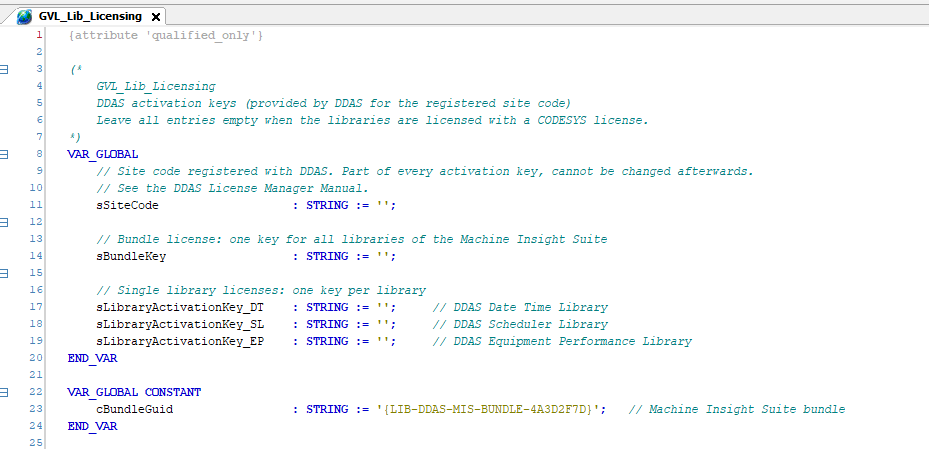
Screenshot: GVL_Lib_Licensing
The main program DDAS_PLC_PRG calls the sample programs. prgLicenseStatus reads the license status of all DDAS libraries; MergeLibFBErrors combines the errors of the function blocks by priority. Details: Application Template Manual (chapter 10).
Use the Libraries in Your Own Project
Add the required DDAS libraries in the Library Manager of your project (Date Time, Scheduler, Equipment Performance). The DDAS License Manager library is added automatically.
No licensing code is required: each library checks the CODESYS license of the device itself.
Optional: read the license status with DDAS_LM.GetLicenseInfo (chapter 8). For this, add the DDAS License Manager library to the Library Manager explicitly.
License Activation and Demo Mode
Demo Mode
Without a license the libraries run with full functionality for 2 hours from each start of the application. After that, the function blocks stop and report error 10 ("no valid license"). The demo mode is intended for evaluation, not for productive operation.
Activate the License
One license covers all libraries of the suite on one device. The license belongs to the controller, not to the development system. This also applies when CODESYS Control Win runs on the same PC as the CODESYS Development System.
After the purchase you receive a ticket ID by e-mail from the CODESYS Store.
In the CODESYS Development System, open the CODESYS License Manager (Tools > License Manager).
Select Device as target (not Workstation) and connect to the controller.
The License Manager shows the license containers of the device (Figure 1). Select the container for the license:
SoftContainer of the device: the license is bound to the device and cannot be moved to another device. Use the container that also holds the runtime license of the controller. On CODESYS Control Win, this is the container “CODESYS GmbH UFC CmRuntime”; other containers shown on the same PC belong to the PC, not to the controller.
CODESYS Key (USB dongle): the license moves with the CODESYS Key. Use it where the device may need to be replaced.
Click Install Licenses… and select Activate license (Figure 2).
Enter the ticket ID, keep the license server CODESYS GmbH and check that the Container field shows the container from step 4 (Figure 3). Click Next.
The License Manager activates the license over the internet and confirms it (Figure 4). Click Finish.
The container now lists DDAS Machine Insight Suite SL (Figure 5).
Without an internet connection, use Request license in step 5: create a license request file on the device, upload it to the CODESYS license server from a PC with internet access, and load the returned license update file onto the device with Install license.
When the libraries use the license:
If the application is running in demo mode, the libraries detect the license within one minute. No restart is required.
If the demo time has already expired, the libraries keep reporting error 10 until the next start of the application. From then on they run without time limit.
Each ticket can be activated only once. On devices with a unique serial number, the CODESYS License Manager creates a backup of the license automatically. Further details: CODESYS online help, "Licensing".
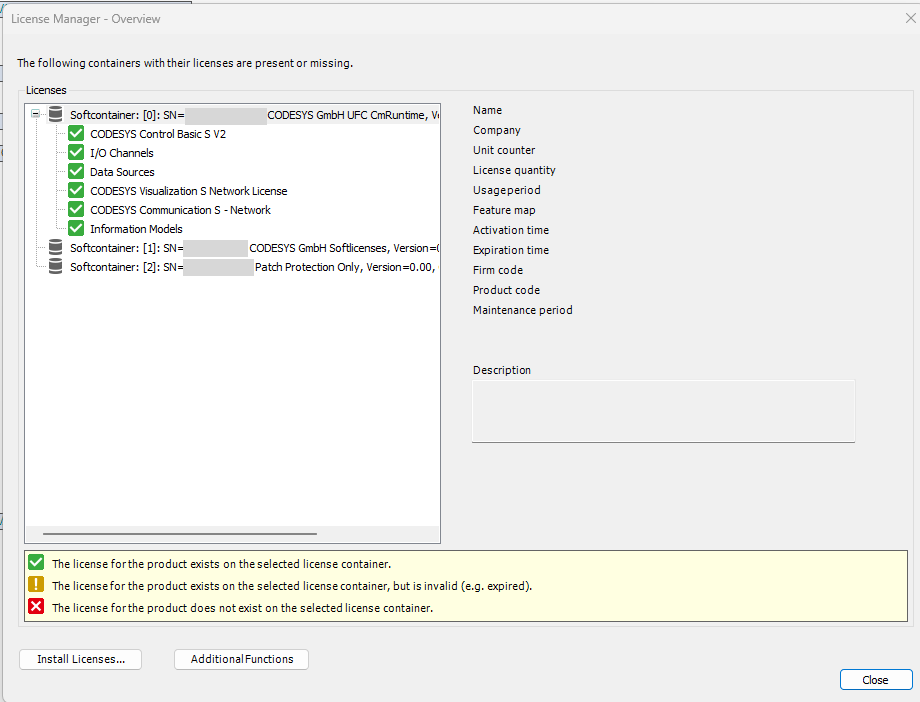
Figure 1: License containers of the device before the activation. The runtime license is in the first container.
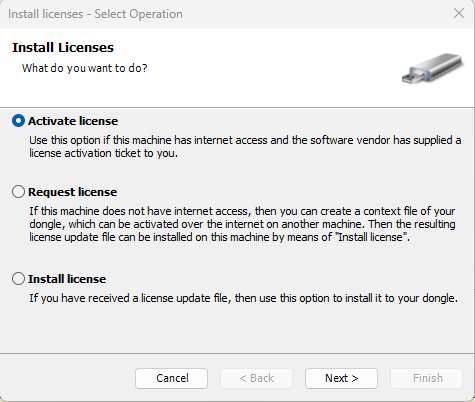
Figure 2: Install Licenses, Activate license.
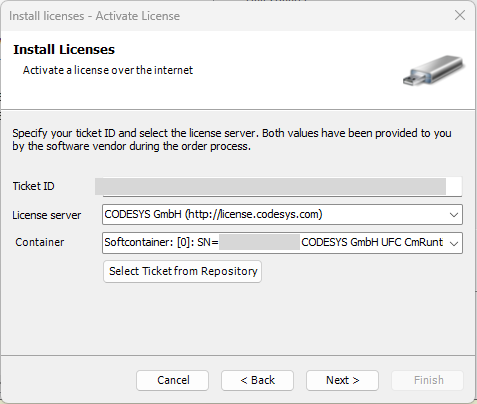
Figure 3: Ticket ID, license server and container.
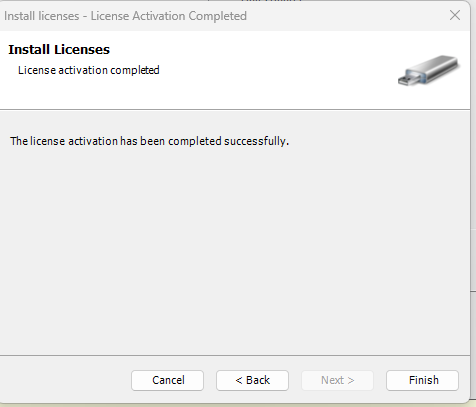
Figure 4: Activation completed.
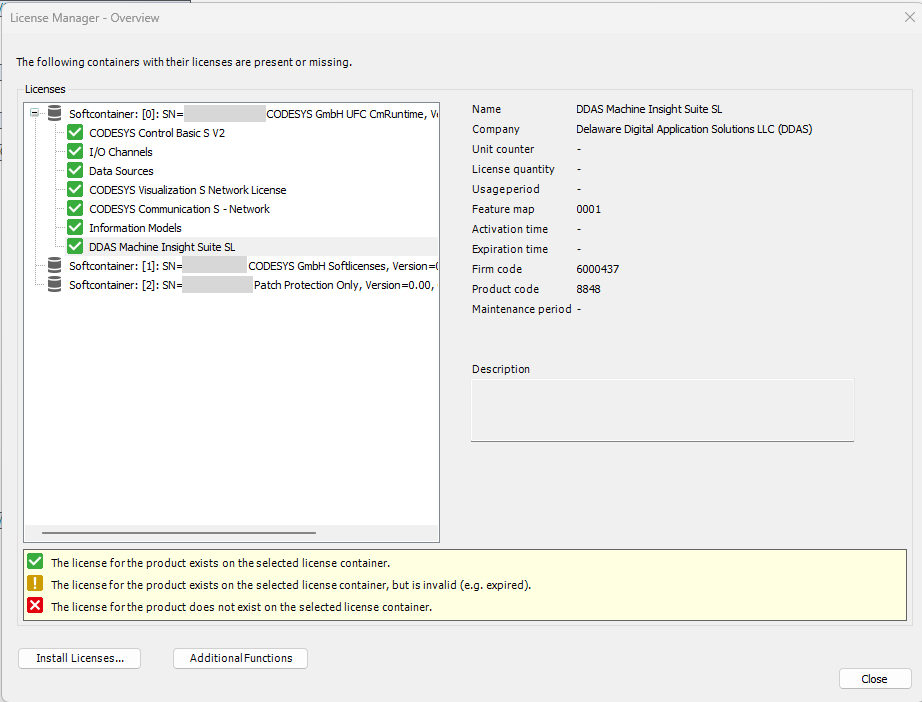
Figure 5: The license DDAS Machine Insight Suite SL in the container of the device.
Check the License Status
In the application template: prgLicenseStatus provides the status of each library (stDT, stSL, stEP) and the first licensing error (iErrorID, sError, sErrorFB). The error is also passed to MergeLibFBErrors.
In your own project:
stInfo := DDAS_LM.GetLicenseInfo(sLibraryGuid := DDAS_DT.GVL_LibGuide.cLibraryGuid);
(DDAS_SL for the Scheduler, DDAS_EP for Equipment Performance.) The result DDAS_LM.scLicenseInfo contains:
| Element | Meaning |
|---|---|
| xLicensed | TRUE: the library runs (license or demo) |
| xFullLicense | TRUE: a device license is active |
| xDemo | TRUE: the demo mode is running |
| eSource | Device: license from the CODESYS license container; DeviceDemo: 2-hour demo; None: no license |
| iErrorID | licensing error, 0 = none |
Troubleshooting
| Symptom | Cause | Action |
|---|---|---|
| Function blocks stop after 2 hours and report error 10 | no license on the device, demo time expired | activate the license (chapter 7); to continue the demo, start the application again |
| GetLicenseInfo reports error 30 | demo time expired | activate the license, then start the application again |
| License activated, but the libraries still run in demo mode or report error 10 | license activated on the workstation or in a container of the PC instead of the device, CODESYS Key not plugged in, or demo time expired before the activation and the application not started again | check the target and container in the CODESYS License Manager (chapter 7); start the application again |
| No license container shown for the device | runtime without CmpCodemeter | ask the device manufacturer; the suite needs CODESYS licensing support (chapter 3) |
| prgLicenseStatus reports error 11 | an entry was made in GVL_Lib_Licensing | leave all entries of GVL_Lib_Licensing empty (chapter 5) |
If the problem remains, contact support (chapter 11) with the CODESYS version, the device, the output of prgLicenseStatus and the error codes.
Online Help
Library Manuals
DDAS Date & Time Library: https://ddas.cloudet.digital/html/DDAS-DateTime-LibraryManual-en.html
DDAS Scheduler Library: https://ddas.cloudet.digital/html/DDAS-Scheduler-LibraryManual-en.html
DDAS Equipment Performance Library: https://ddas.cloudet.digital/html/DDAS-EquipmentPerformance-LibraryManual-en.html
Application Template Manual
DDAS Application Template: https://ddas.cloudet.digital/html/DDAS-ApplicationTemplate-Manual-en.html
Support, Security and Updates
Support: create a ticket in the DDAS helpdesk at https://www.ddas.digital/helpdesk. The license includes 3 months of helpdesk support from the date of purchase. Support is provided by DDAS, not by CODESYS.
Updates: DDAS publishes updates for the SL edition in the CODESYS Store, with release notes. Install them with the CODESYS Installer (chapter 4).
Security: security advisories and the vulnerability disclosure policy are published at https://security.ddas.digital. Report vulnerabilities to security@ddas.digital. Security updates are provided for five years from the release of your version (end date in the release notes), free of charge in the latest compatible version.
SBOM: a Software Bill of Materials (CycloneDX and SPDX) is available for each released version on request through the DDAS helpdesk.
Intended use: the suite is not designed for safety functions. Operate the controller in a protected network and use the security features of CODESYS (user management, encrypted communication).
Your Feedback Matters
These instructions have been prepared to the best of our knowledge and belief to provide you with the highest possible level of support when working with our product.
Despite our best efforts, we may not always fully achieve this objective. If you identify any issues or have suggestions for improvement, we would greatly appreciate your feedback.
Please send your comments or criticism in a short e‑mail to:
Thank you for your support.
Your DDAS Application Software Team